Pay Rates holds your pay levels (the rate definitions) and shows which level each employee is on, today and on any past date. Timesheet labour costs and pay run estimates both read from here.
SubGrade uses these rates for budget estimates and export quantities. Your payroll system still does tax, super, STP, payslips and bank payments.
Who can use it — Four permissions apply:
- View compensation opens the page.
- Manage compensation creates and edits pay levels and assignments.
- View pay level rates shows the dollar amounts.
- Manage pay level rates is needed for Uplift rates and Supersede with new rates.
See Roles & Permissions for how these are granted.
Where to find it — Payroll & Billing → Pay Rates in the sidebar.
Before you start
Dollar amounts can be hidden from you. Without "view pay level rates" you still see pay level names, employee assignments and dates, but every amount shows as ••• and a banner reads "Pay rate values are hidden." This lets someone assign people to levels without seeing confidential pay.
Subcontractors have no pay level. They are priced on their rate card and paid through RCTIs. See Subcontractors. Staff marked Exclude from payroll are also left out, because a combined overhead entry carries their cost.
A rate that has priced work is locked. Once a pay level has posted budget entries, you change its rates with Supersede with new rates, so past pay is never rewritten.
How to use it
The page has four tabs, each with a count badge:
- Pay Levels — the rate definitions.
- Employee Rates — who is on which level now, and what they receive on top of it.
- Snapshot — what everyone resolved to on a chosen date.
- Timeline — pay level and allowance periods for each employee.
Allowances have their own page: Allowances, also under Payroll & Billing.
Pay Levels
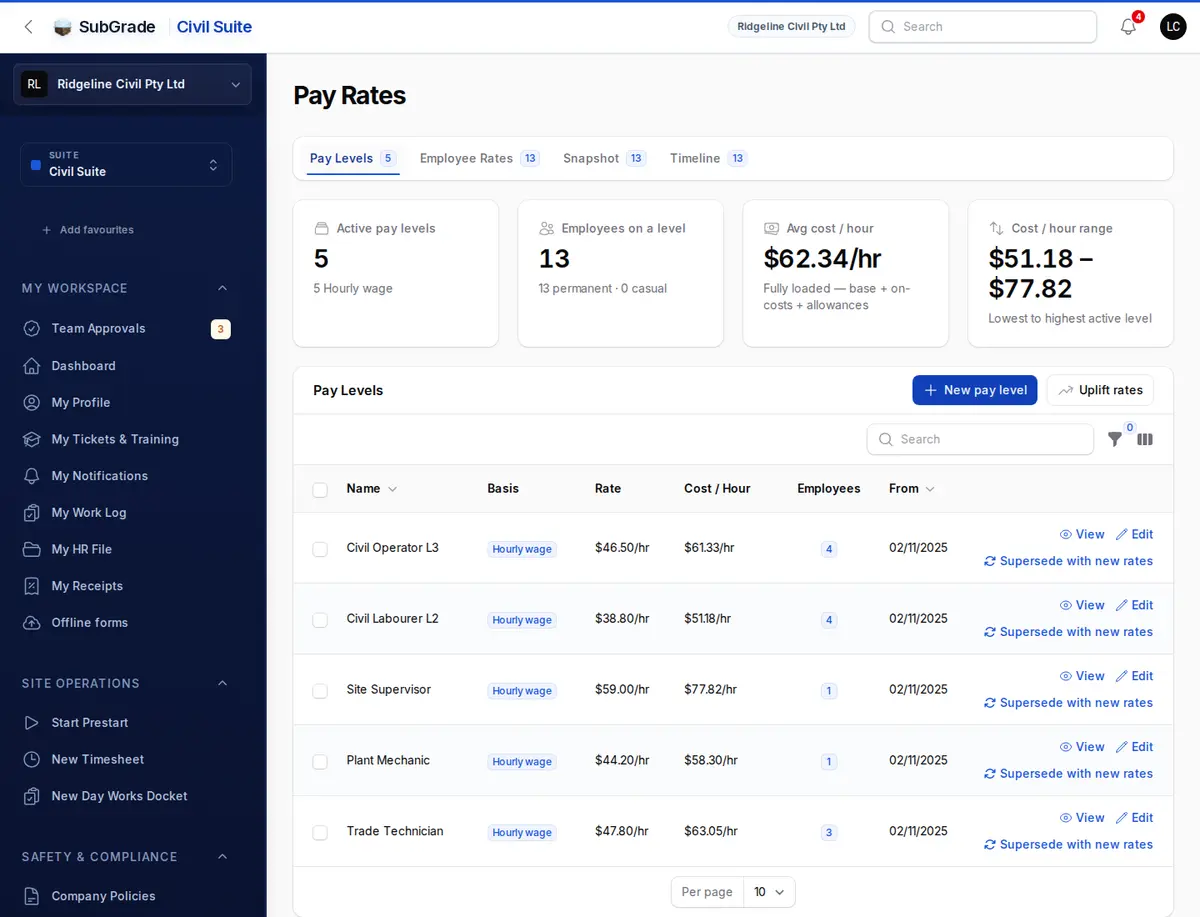
Four tiles sit above the list: Active pay levels, Employees on a level, Avg cost / hour and Cost / hour range. The list shows each level's Basis, Rate, fully loaded Cost / Hour (base, on-costs and allowances), Employees and start date.
Use New pay level to add one. The form has two tabs, Rate and Overtime & penalties.
The basics
- Name — what your crew calls this rate.
- Paid from and Paid until — leave Paid until blank unless the rate has a known end date.
- How does this level pay? — Hourly wage, Annual salary or Day rate. Hourly runs through overtime, weekend and night rates. Salary and day rate are a fixed amount regardless of hours worked.
The rate
- Hourly — Base hourly rate and Casual loading (25% by default). Casual loading on overtime and penalty hours follows your workspace default unless you pick otherwise. Check your award or agreement.
- Annual salary — Annual salary, with a preview of the amount per pay period and the rough hourly rate. A dismissible tip suggests a combined overhead entry if you want management pay kept private.
- Day rate — Day rate, with a preview of the hourly equivalent.
On-costs apply to every basis. They do not change what a person is paid. They are what a job gets charged on top: Superannuation, Workers comp (2% by default, use your insurer's rate) and Leave on-cost (permanents) (17.5% by default, charged on permanents' ordinary hours only, never on casuals).
Overtime, weekend & night rates apply to hourly levels only. Each is a multiple of the base rate: Overtime 1.5×, Double time 2×, Saturday 1.5×, Sunday 2×, Public holiday 2.5× and Night shift 1.5×. These are starting values, so check them against your award. Three hour settings sit alongside them:
- Overtime starts after — hours worked in a day before overtime begins.
- Overtime becomes double time at — leave blank if all overtime is time and a half.
- Hours paid for a day of leave or a public holiday — usually 7.6 or 8. This is not the overtime threshold.
Rate ladders set how each kind of day is paid, counted from the start of the shift. Leave a day empty to pay every hour at its own rate.
Allowances everyone on this level gets are shown read-only with a link to Allowances. Attach them there, each from the date it starts. Save the level first.
Check a week's pay lets you type two example weeks and see what the level pays permanents and casuals. Nothing there is saved.
Changing rates once a level has been used
Once a level has posted budget entries, its rate fields lock and a notice explains why.
- Supersede with new rates changes one level. It is on the row in the list and at the top of the level's page. Pick when the new rates start and enter the changes. The current record ends the day before, and everyone on it moves to the new record automatically.
- Uplift rates changes many levels at once, for example an award increase. Choose the start date, rise by Percentage or Dollars per hour, untick any levels that are not rising, and check the Preview. A percentage applies to hourly, salary and day rates. A dollar rise applies to hourly levels only. Each level is superseded the same way.
Both default to tomorrow. A past date is allowed for a rise that has already started, as long as it does not fall in a locked budget period. If the date reaches back into a finalised pay run, the form lists those runs and asks you to confirm. The runs are not changed. When a level has someone to pay, a Back-pay due button appears on its page, showing the difference per employee and per finalised run, with a CSV download. You key that difference into your payroll system.
Deleting a pay level
A level that has already priced work cannot be deleted. Supersede it instead. A level that has not priced work can be deleted from its edit page. If people are assigned to it, the confirmation tells you how many assignment records go with it.
Employee Rates
This tab lists everyone on payroll with their Pay Level and Allowances. The Missing pay level filter finds anyone without one.
- Assign / change pay level (on the row) sets the level, Employment Type (Permanent or Casual) and Effective From.
- Bulk Assign Pay Level does the same for several people, and previews whose current assignment will be replaced.
- Add allowance (on the row) and Give an allowance (at the top) open the same form as Allowances.
An existing active assignment closes automatically the day before the new date, so the earlier history is kept.
Editing an assignment
Open Pay level assignments from an employee's profile to see the full list of assignments.
- Current — the employee, pay level and employment type are locked. Select the row and use Bulk Supersede to change them. You can still set an Effective To date.
- Expired — cannot be edited. Create a new assignment instead.
- Bulk Extend / Close sets or clears the end date across a selection, which suits contract ends.
Snapshot
Pick an As of date to see each employee's pay level, employment type, base rate, effective hourly rate and allowances on that day. Use it to reconcile a past pay period or check an old budget figure. Tick Include non-payroll workers to add subcontractors and externally managed staff.
Timeline
A chart of pay level and allowance periods for each employee. It opens on the last six months through the next three, and you can change Window start and Window end. Bands are marked Current, Upcoming or Expired. Use Search employees to narrow it, or tick Include non-payroll workers.
How this feeds costing and pay runs
Every approved timesheet entry is costed against the employee's pay level on that date, including on-costs, penalty rates and allowances. The result posts to the Budget Ledger. The same setup builds the lines in a Payroll Hub pay run.
If someone has no active pay level for a timesheet date, their wages post no cost for that entry. Any machine they ran still costs the job. Budget Overview flags this under What needs action, and assigning a level clears those dates automatically.
Connected pages
- Allowances — where allowances are set up and attached to levels and people.
- Payroll Hub — pay runs built from the same levels.
- People — employee records.
- New Timesheet — the entries costed against a pay level.
- Budget Ledger — where labour costs land.
- Overhead — the combined entry for confidential or excluded staff.
- Roles & Permissions — how the permissions above are granted.
Tips & common mistakes
- Seeing ••• instead of dollars? You can open the page but do not hold "view pay level rates". That is by design.
- Can't change a rate? The level has posted to the budget. Use Supersede with new rates.
- No Supersede button? It appears once a level has posted entries, and only with "manage pay level rates". Before then, edit the level directly.
- A new starter's timesheets aren't costing. Filter Employee Rates by Missing pay level.
- Keeping management salaries private? Anyone who can view pay rates sees individual salary levels. Use a combined overhead entry instead.
- Casual loading applies to hourly levels only. Salary and day-rate levels are not loaded.
- Travel allowance not showing as expected? Travel allowances follow how the person travels, so check the vehicle setting on their employee record.